Dashboard
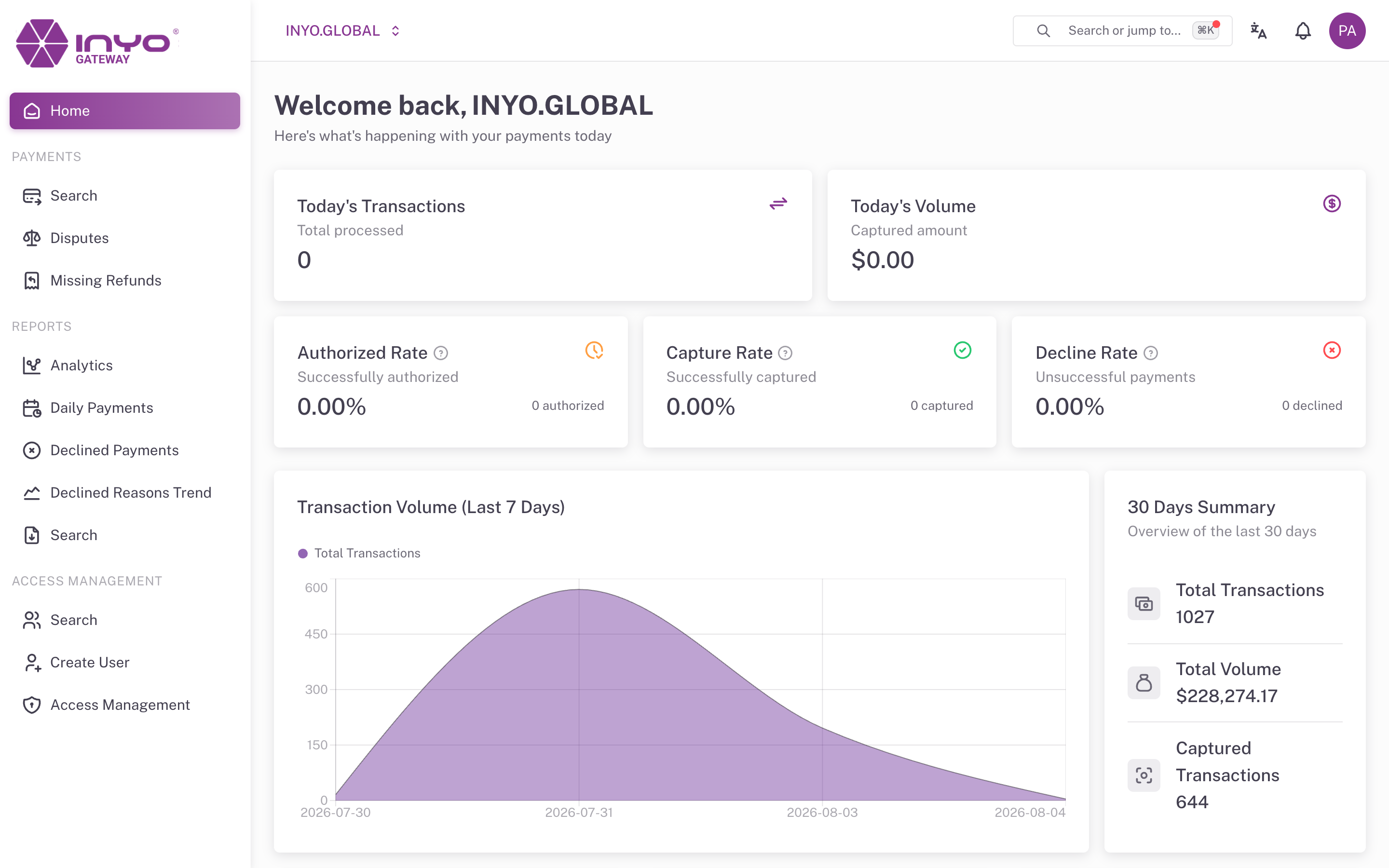
The Inyo Dashboard is the web console for the Inyo Gateway. It gives your operations, finance, and support teams a live view of everything moving through your account — and the controls to act on it — without writing a line of code.
From the Dashboard you can:
- Monitor activity — real-time KPIs, volumes, approval rates, and AVS/CVC verification rates
- Operate on payments — search any transaction, then capture, void, or refund it (fully or partially)
- Manage disputes — track chargebacks through their full lifecycle and submit defense evidence
- Run reports — analytics, daily breakdowns, declined-payment analysis, and downloadable report files
- Administer your team — create users, define access groups, and audit every action taken
Accessing the Dashboard
Dashboard URLs and user accounts are issued by Inyo during onboarding. Sandbox and production are separate deployments with separate accounts — there is no environment toggle inside the app.
Sign-in is handled through Inyo's single sign-on. See Getting Started.
The interface is available in English, Portuguese, and Spanish — switch languages from the top navigation bar or the login page.
Navigation
| Menu | Page | What it does |
|---|---|---|
| — | Home | Today's KPIs, 7-day volume trend, 30-day summary |
| Payments | Search | Find any payment or payout; open its details |
| Payments | Disputes | Chargeback management by ARN |
| Payments | Missing Refunds | Refund reconciliation exceptions |
| Reports | Analytics | Performance trends over 7–120 days |
| Reports | Daily Payments | Single-day breakdown |
| Reports | Declined Payments | Declined transactions with reason codes, CSV export |
| Reports | Declined Reasons Trend | Decline rules trending over time |
| Reports | Search | Download generated report files |
| Reports | Visa Rebate | Quarterly Visa interchange rebate estimate |
| Access Management | Users | Create, search, block, and delete users |
| Access Management | Access Management | Groups, members, and the permissions catalog |
| Settings | Settings & Activity Logs | Time zone, user activity, and login audit |
Two cross-cutting tools are always available from the top bar: Quick Search (⌘K / Ctrl+K) and the Notifications bell.
Organizations and permissions
The Dashboard is multi-organization. If your account belongs to more than one organization, use the organization switcher in the top bar to change the active view — every page, report, and permission is scoped to the selected organization.
What each user can see and do is controlled by access groups — named bundles of permissions assigned per organization. A user with no payment permissions will not even see the Payments menu. See Access Management and the Permissions Reference.
Next Steps
| Page | What it covers |
|---|---|
| Getting Started | Sign in, switch organizations, and find your way around |
| Payments | Searching payments and acting on them |
| Reports | Every report, filter, and export |
| Access Management | Groups, members, and permissions |
| Permissions Reference | Every permission and what it unlocks |