
Getting Started
This guide takes you from the login page to a working session: signing in, choosing the organization you want to operate on, and finding the tools you will use every day.
Prerequisites
- A Dashboard user account, created either by Inyo during onboarding or by an administrator in your team via User Management
- At least one access group assigned to your user — your access groups determine which menus and actions you see
- The Dashboard URL for your environment (sandbox or production), issued by Inyo
Step 1: Sign In
Open the Dashboard URL and click Login. You are redirected to Inyo's single sign-on to enter your credentials, then returned to the Dashboard.
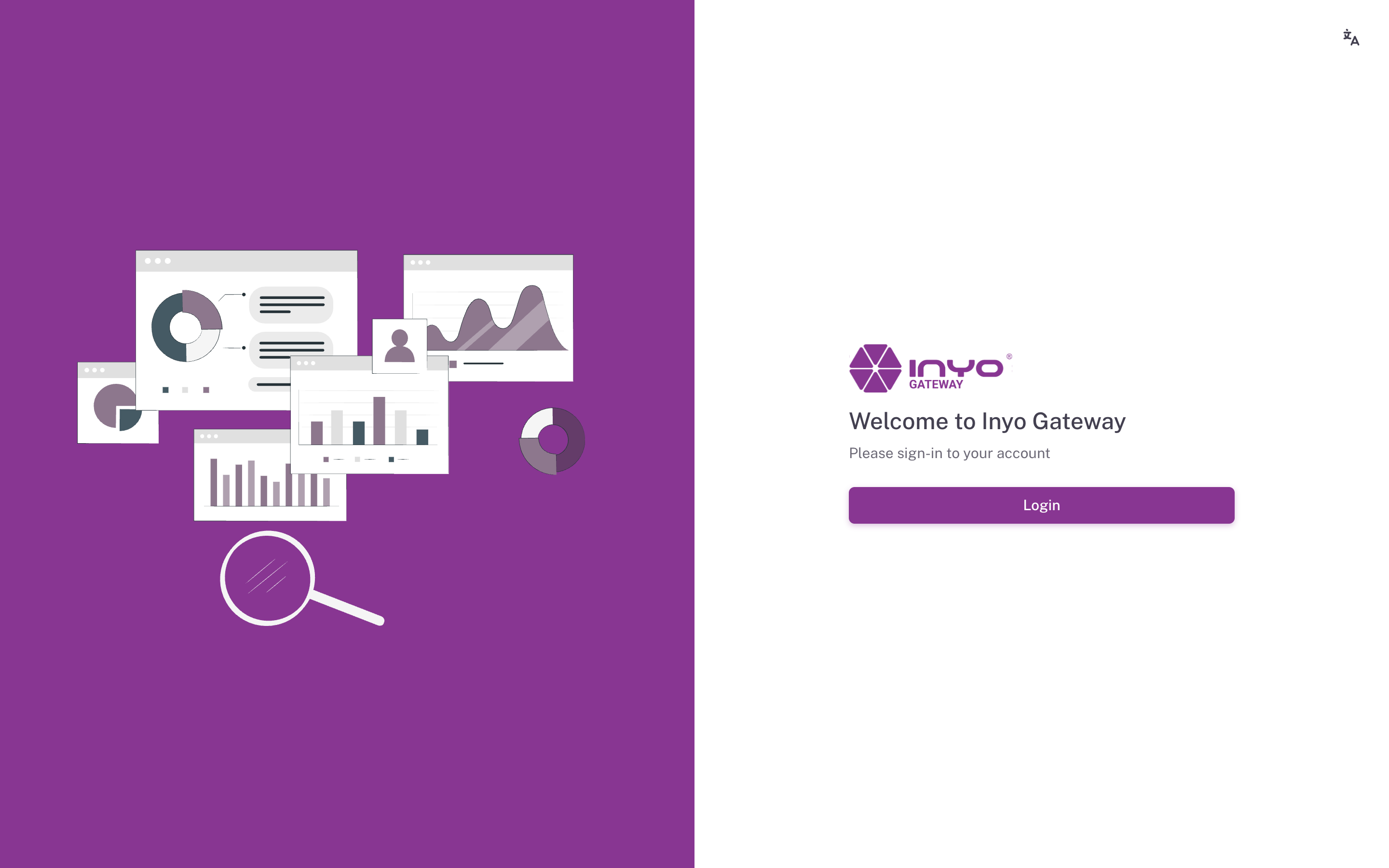
There is no in-app registration or self-service password reset — accounts are provisioned by an administrator, and an administrator can reset your password from User Management.
The login page includes a language selector (English / Portuguese / Spanish) if you want the sign-in experience in your language.
Step 2: Check Your Active Organization
The button in the top bar shows the organization you are currently viewing. Every list, report, and action in the Dashboard is scoped to it.
To switch:
- Click the organization name in the top bar
- Pick the organization from the list
- Confirm with Switch View
A toast confirms the change (View switched to <organization>), and your permissions are re-evaluated for the new organization — the menu may change accordingly.
Step 3: Learn the Top Bar
| Tool | What it does |
|---|---|
Search or jump to... (⌘K / Ctrl+K) | Quick Search — jump to any page or run natural-language payment queries |
| Language selector | Switch between English, Portuguese, and Spanish |
| Notifications bell | Notifications for chargeback events and refund exceptions |
| Avatar menu | Your name and email, Settings, and Logout |
Sessions and Signing Out
Your session refreshes silently while you work. If it can no longer be refreshed — after prolonged inactivity, for example — the Dashboard shows a "Your session has expired" dialog and returns you to the login page. Just sign in again; nothing is lost.
To sign out manually, open the avatar menu and click Logout.
Access groups are read at sign-in. If an administrator changes your permissions, sign out and back in to pick up the new roles.
If You See "Unauthorized Access"
Opening a page your access groups don't cover shows an Unauthorized Access screen with a Back To Home button. This is expected — ask your administrator to add you to an access group that includes the permission you need, then sign in again. The Permissions Reference lists which permission unlocks each page.
Next Steps
| Page | What it covers |
|---|---|
| Home | Your landing page — today's KPIs at a glance |
| Searching Payments | Finding any transaction |
| Quick Search | The fastest way to move around |