
Searching Payments
Payments → Search is the master list of every transaction in the active organization. Use it to locate a specific payment from a customer inquiry, review recent activity, or drill into a transaction before acting on it.
Requires: view payment details.
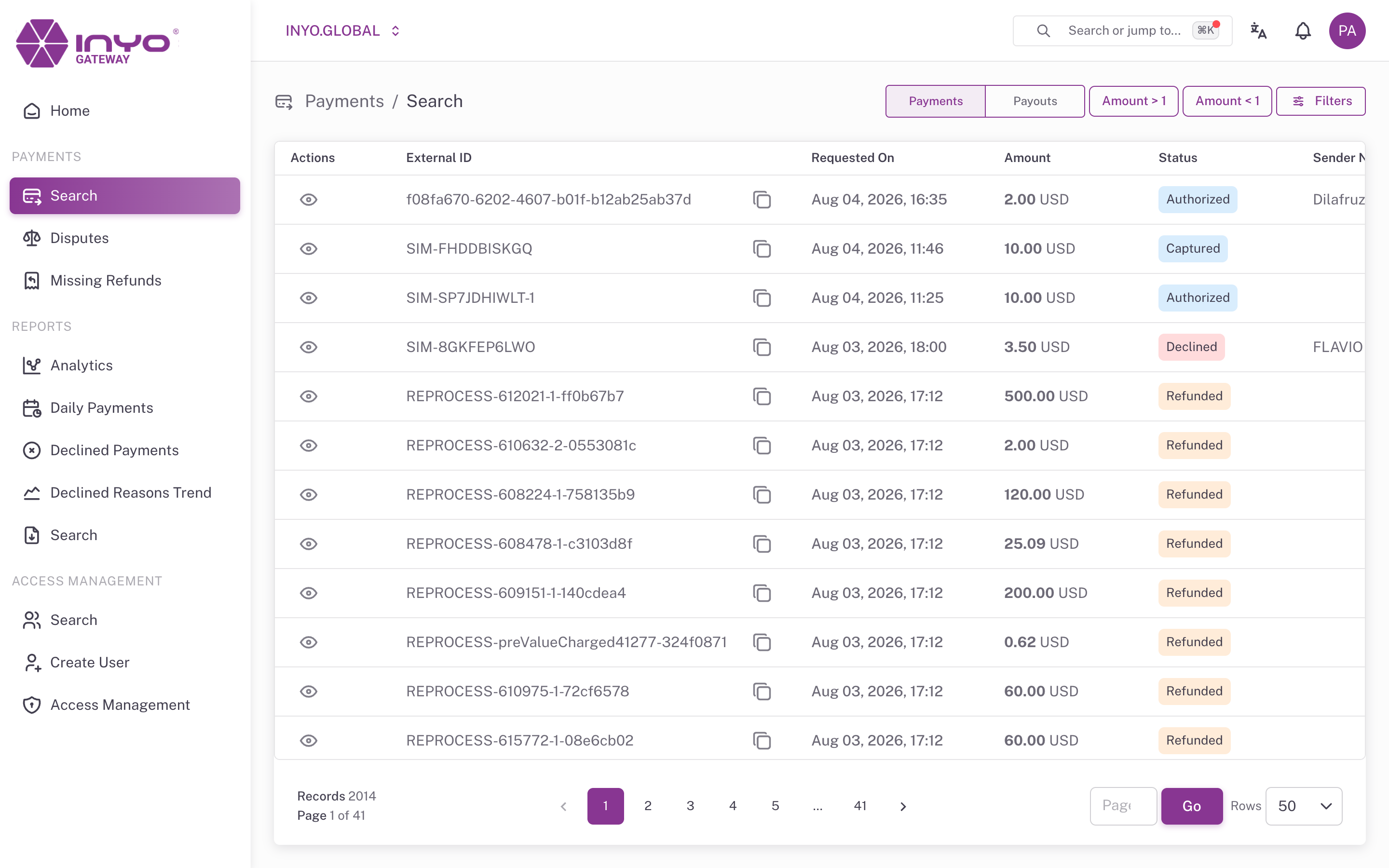
Payments vs. Payouts
Two tabs at the top of the page switch the transaction flow:
| Tab | Flow | Meaning |
|---|---|---|
| Payments | Pull | Funds collected from a customer (card, ACH, etc.) |
| Payouts | Push | Funds sent to a recipient |
The selected tab is kept in the URL, so a filtered view can be bookmarked or shared with a teammate.
The Results Table
| Column | Notes |
|---|---|
| Actions | Eye icon opens Payment Details |
| External ID | Your system's reference — click to copy |
| Requested On | Creation timestamp (in your configured time zone) |
| Amount | Amount and currency |
| Status | Colored status badge |
| Sender Name / Phone / Email | Customer identity fields; email is copyable |
| Card | Masked card number |
Results are paginated at 50 rows per page, with direct page navigation.
Filtering
Click Filters to open the filter panel, set any combination, and hit Apply filters (Clear all resets). Filters are encoded in the URL — bookmark or share the link to reproduce the exact search.
| Filter | Type |
|---|---|
| Amount | Numeric with operators: >=, <=, =, !=, >, < |
| Status | One of PAID, CAPTURED, AUTHORIZED, REFUNDED, PARTIALLY_REFUNDED, PARTIALLY_CAPTURED, DECLINED, PENDING, VOIDED, CHALLENGE |
| Period | Date range, with 7d / 30d / 60d / 90d presets |
| External ID / Payment ID | Exact (=) or partial (like) match |
| First name / Last name / Email / Phone | Exact or partial match |
| Card BIN | First 6 digits of the card |
| Card last 4 | Last 4 digits of the card |
Typical lookups:
- Customer says they were charged twice — filter by
EmailorCard last 4plus thePeriodpreset covering the charge date - Find a specific order — filter
External IDwith=and your order reference - Review today's declines — Status
DECLINED+ Period today; for trend analysis use Declined Payments instead
Status meanings and valid transitions are defined in Payment Status.
Faster: Search from Anywhere
Quick Search (⌘K) understands queries like declined last 30 days or captured > 500 and lands you on this page with the filters pre-applied. Pasting a payment ID opens that payment directly.