
Payment Details & Actions
Opening a payment from Search shows everything the Gateway knows about that transaction — and, depending on its status and your permissions, the actions you can take on it.
Requires: view payment details to open the page; each action button has its own permission (see Permissions Reference).
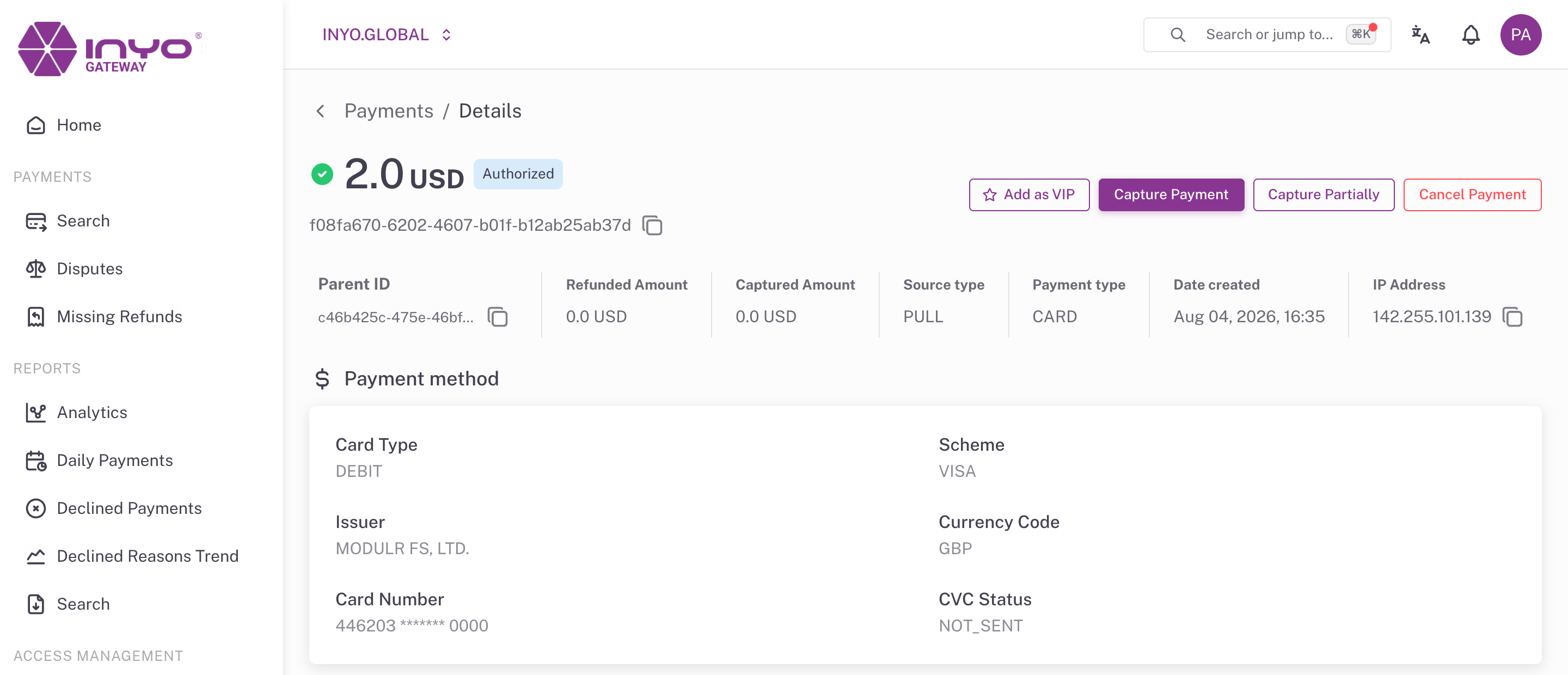
The Header
The top of the page shows the amount, currency, and status badge, an approved/not-approved indicator, and the copyable external ID, followed by a metric strip:
Parent ID · Refunded Amount · Captured Amount · Source type · Payment type · Date created · IP Address
If a banner reads "This payment is currently being processed", an operation is already in flight. All action buttons are disabled until it completes — wait and refresh rather than retrying.
Available Actions
Which buttons appear depends on the payment's current status:
| Payment status | Actions available | Permission |
|---|---|---|
AUTHORIZED | Capture Payment / Capture Partially | capture |
AUTHORIZED | Cancel Payment (void — releases the hold) | void |
CAPTURED, PARTIALLY_CAPTURED | Refund Payment / Refund Partially | refund |
Every action opens a confirmation dialog requiring:
- A Description — the reason for the action (required; it appears in the payment history and audit log)
- A Call Number (optional) — reference to the support ticket or call that triggered the action
- A confirmation checkbox before submit
Partial actions add an amount field (Refunding Amount / Approving Amount), validated to be positive and no greater than the payment total.
Actions are asynchronous: on submit you'll see "Payment is being processed!", the payment enters the processing state, and the result lands in the payment history shortly after.
Action availability is also configured per organization by Inyo — capture, void, and refund can each be enabled or disabled independently for payments and payouts. If a button you expect is missing on a status where it should apply, check your permissions first, then contact Inyo support about your organization's operation settings.
Add as VIP
Add as VIP queues a request to flag the payment's customer for VIP treatment in downstream processing. It is available regardless of status and requires no special permission. The button shows "Request was added to the queue" on success.
Transaction Data Sections
The body of the page adapts to the payment method:
| Payment type | Fields shown |
|---|---|
| Card | Card Type, Scheme, Issuer, Currency Code, Card Number (masked), AVS Status, CVC Status |
| Bank account | Account Number, Account Type, Bank Code, Routing Number |
| PIX | Key Type, Key Value |
| Wallet | Wallet ID |
Below it, the Person / Address section shows the customer identity captured with the payment: name, email, phone, full address, and IP address.
Payment History
The history table is the authoritative timeline of the transaction — every authorization, capture, refund, void, and decline, with:
Source · Status · Amount · Code · Payment ID · Requested on · Requested by · Description · Transaction Cost
Requested by records who performed each Dashboard action, and Description carries the reason entered in the action dialog — which is why a meaningful description is worth writing. The same events are also visible in the User Activity log.
Response
Codevalues are the Gateway's response codes — see Response Code.