
Access Management
Access Management is where you define who can do what in the Dashboard. The model has three parts, one tab each:
- Groups — named bundles of permissions (for example "Support", "Finance", "Admins")
- Members — which users belong to which groups
- Permissions — the read-only catalog of every permission and who holds it
A user's effective permissions are the union of all their groups, evaluated per organization. Changes take effect at the user's next sign-in.
Requires: manage access groups for the Groups and Permissions tabs; manage user access for the Members tab; deleting groups additionally requires delete access groups.
Groups
The Groups tab is a master–detail view: search and select a group on the left; see its stats (Members / Permissions / Modules), member list, and permission list on the right.
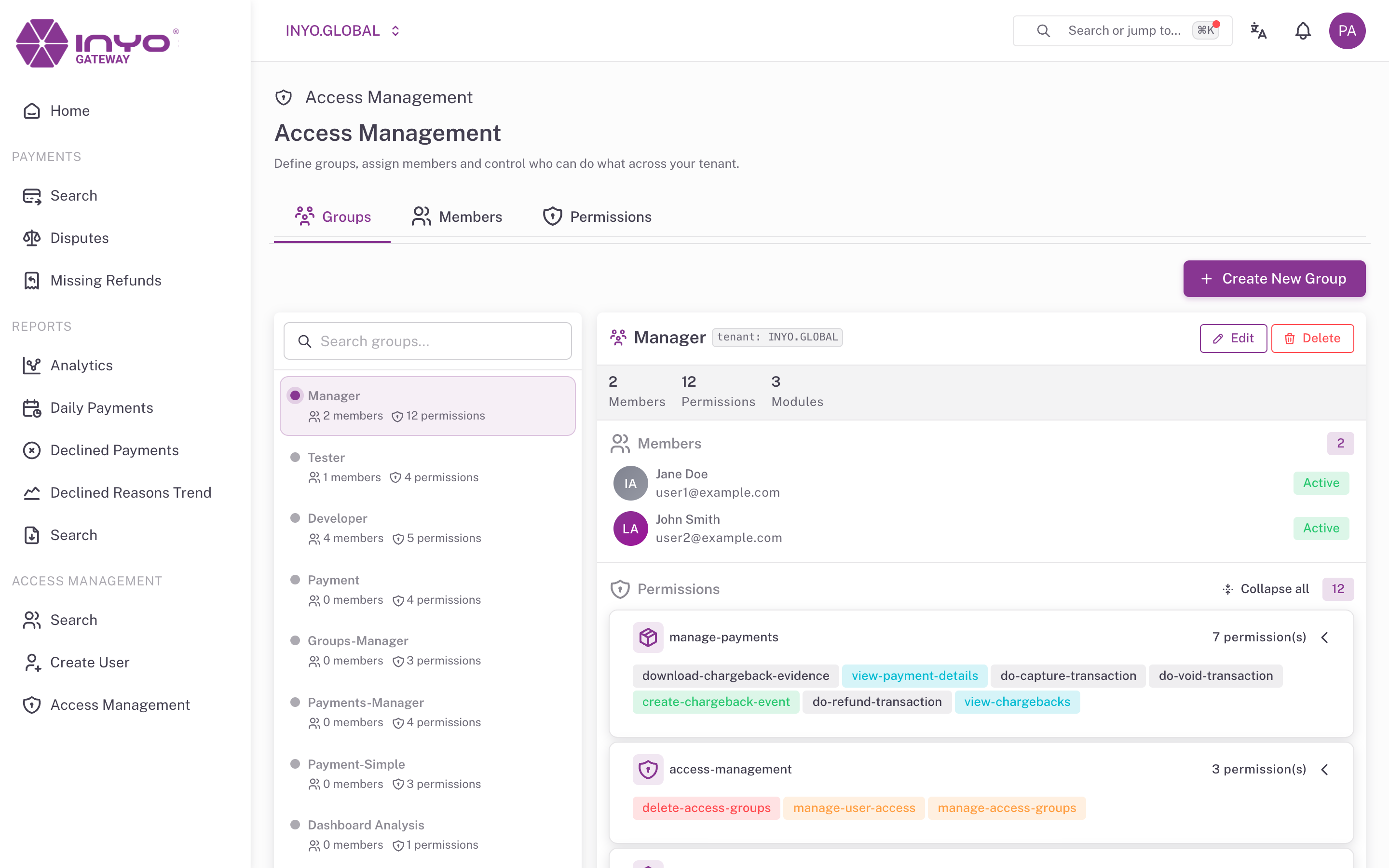
Creating a group — click Create New Group:
- Enter a Group Name — short and recognizable ("Admins", "Auditors"). Names cannot be changed after creation, so choose carefully.
- Pick permissions in the picker — searchable, grouped by module, with Select all / Clear all and per-module All shortcuts
- Click Create
Editing changes only the permission set (Save changes). Deleting asks for confirmation — members lose whatever access came from that group at their next sign-in.
Members can also be managed from the group's detail panel: Add members and per-row Remove from group.
Designing groups: build around job functions, not individuals — a Support group with payment viewing plus refund, a Finance group with reports, a Viewer group with read-only access. Keep money-moving permissions (capture, void, refund) and administrative ones (access groups, user management) in separate, deliberately small groups. The Permissions Reference lists everything available.
Members
The Members tab manages assignments from the user side: a table of users with their status and group chips. Remove a group directly from its chip, or add one via the Add chip on the row.
Bulk assignment: select multiple rows and click Assign to group…. Selected groups are added to each user's existing groups — bulk assignment never removes anything. A toast reports the outcome, including partial failures.
The search box and the Active only toggle filter the currently loaded page of users. If you're hunting one specific person in a large organization, refine the search text rather than paging through.
Permissions
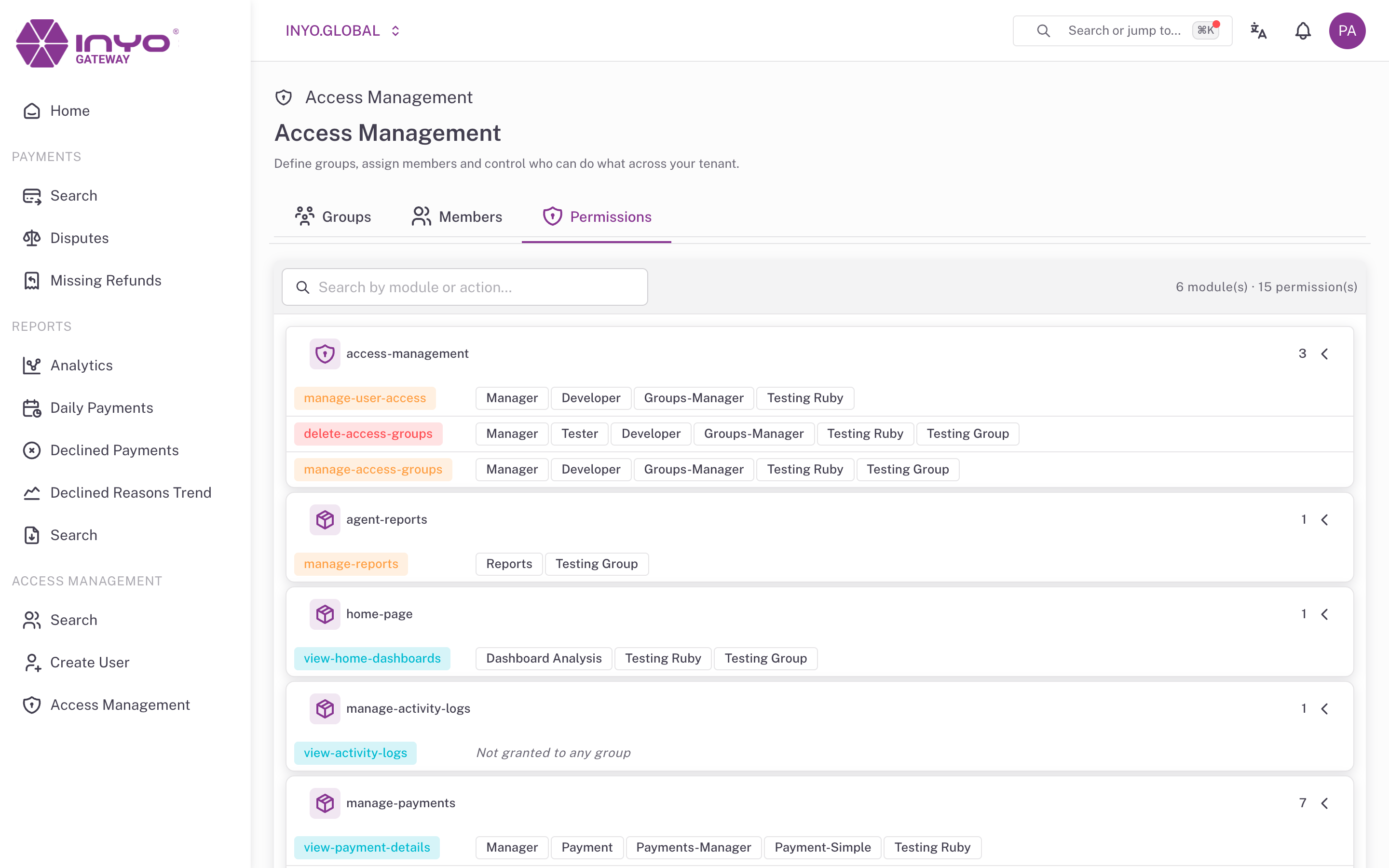
The Permissions tab is a read-only catalog for audits: every module and action known to the organization, with the groups each is Granted to (or "Not granted to any group"). Use it to answer "who can refund payments?" in one search — and to spot permissions no group holds.
Auditing Changes
Every access-management operation — group created, updated, or deleted, user access provided — is recorded with actor, timestamp, and IP in the User Activity log.