Compliance & Fraud
Payment Card Verification
Know that the card your customer pays with belongs with the identity they just proved. Right after the identity check, the customer photographs their payment card in the same widget. Inyo360 checks that the card is real and carries their name, and can hand you a gateway token for it, so you never build a card form.
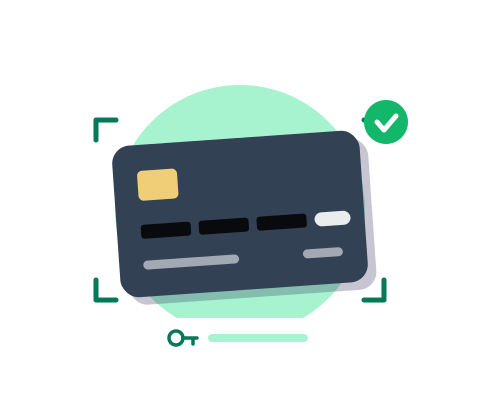
Read on the device
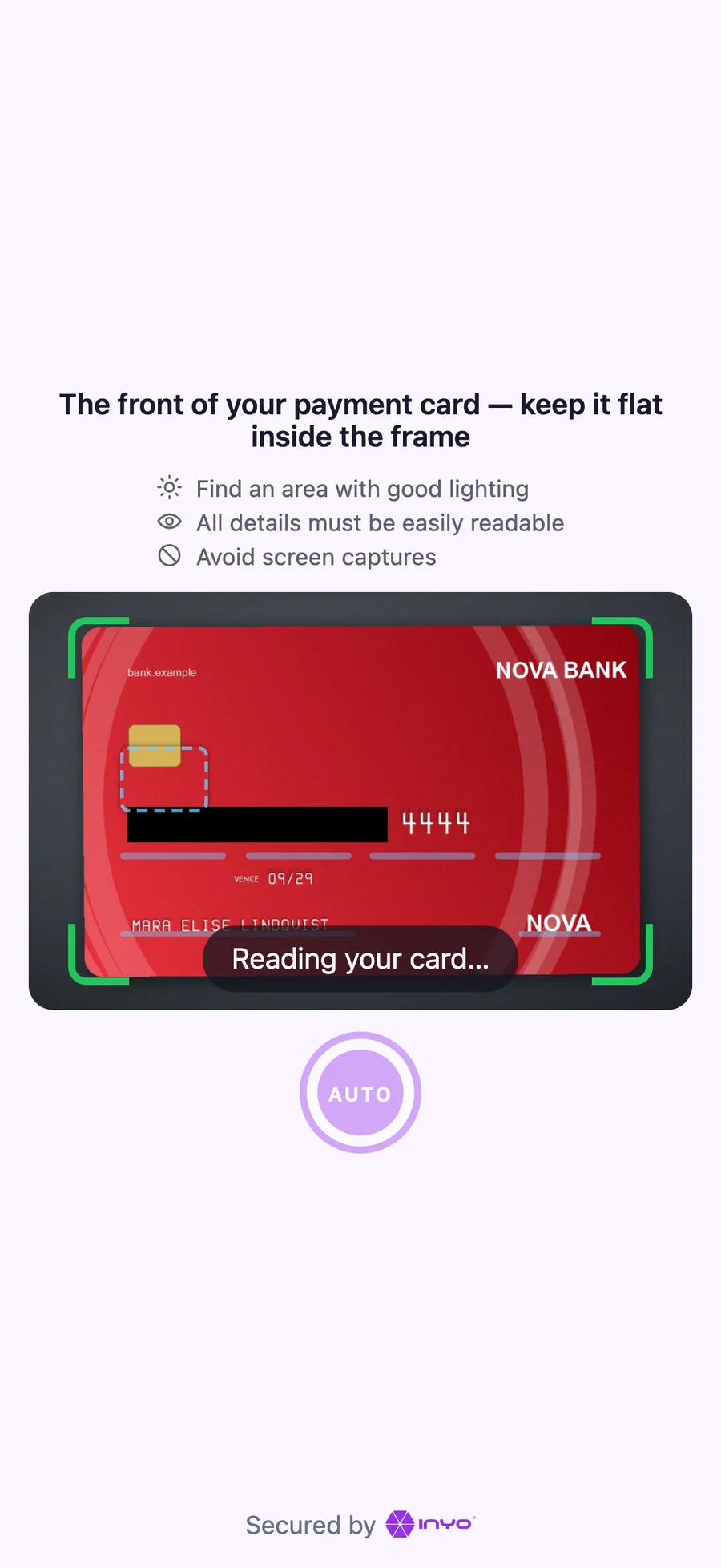
The card's details are read from the camera on the customer's own phone. The customer checks them instead of typing them in. How the holder sees it
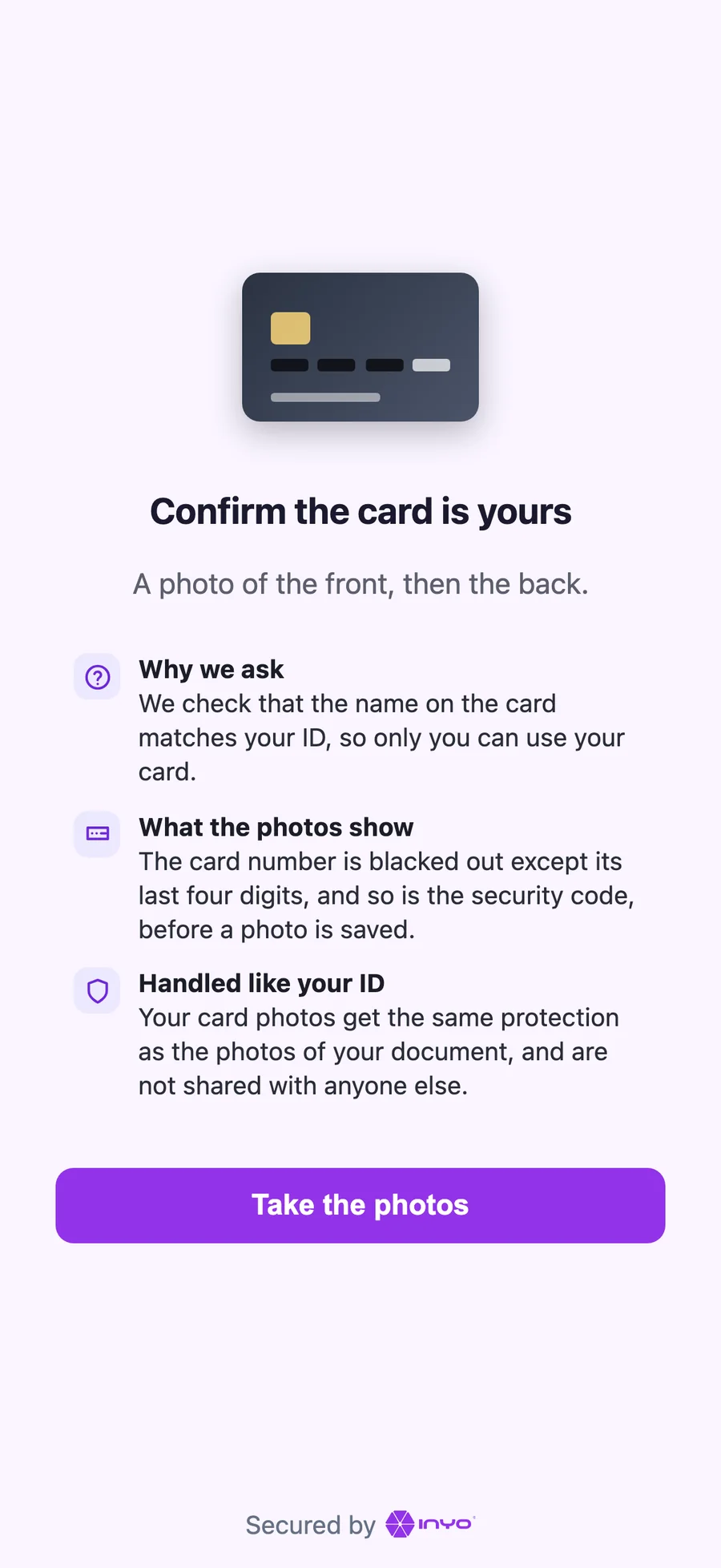
Redacted before storage
The card number, except its last four digits, and the security code are blacked out before any photo is kept. Data handling
Checks on the card and its holder
The card is checked for being a genuine physical card, and its name against the identity document the customer just presented. The checks
Tokenizing without a form
The customer confirms the details read from the card, and the payments gateway tokenizes it. You receive the token. Getting started
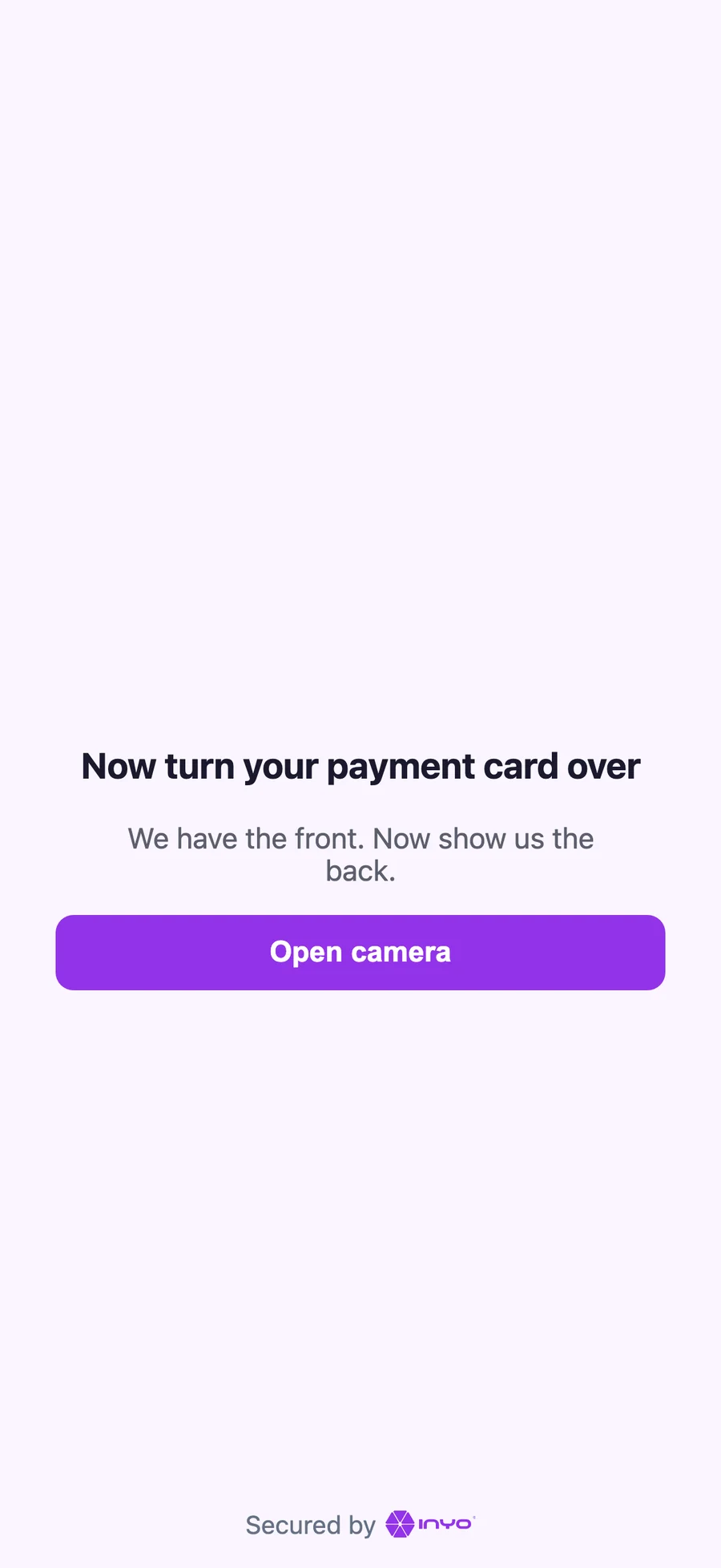
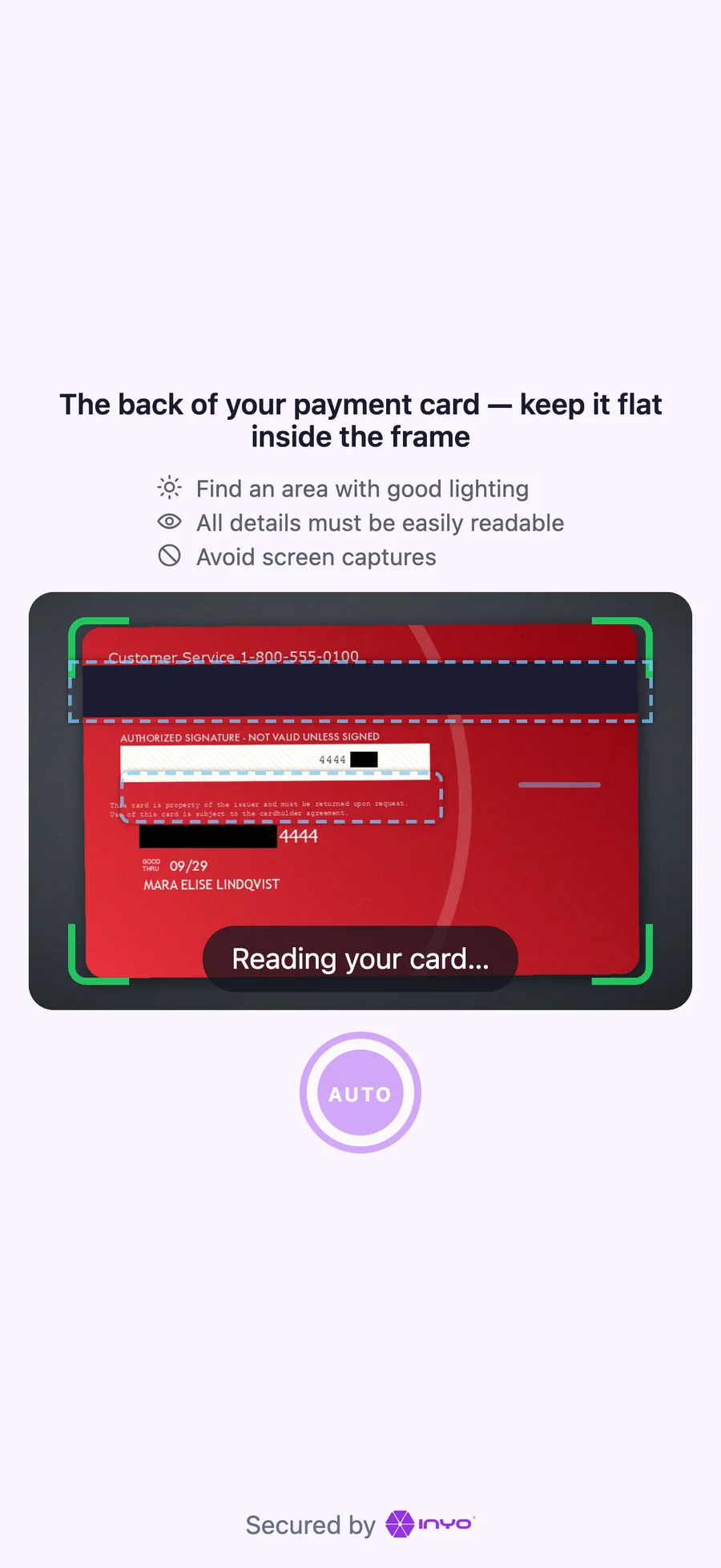
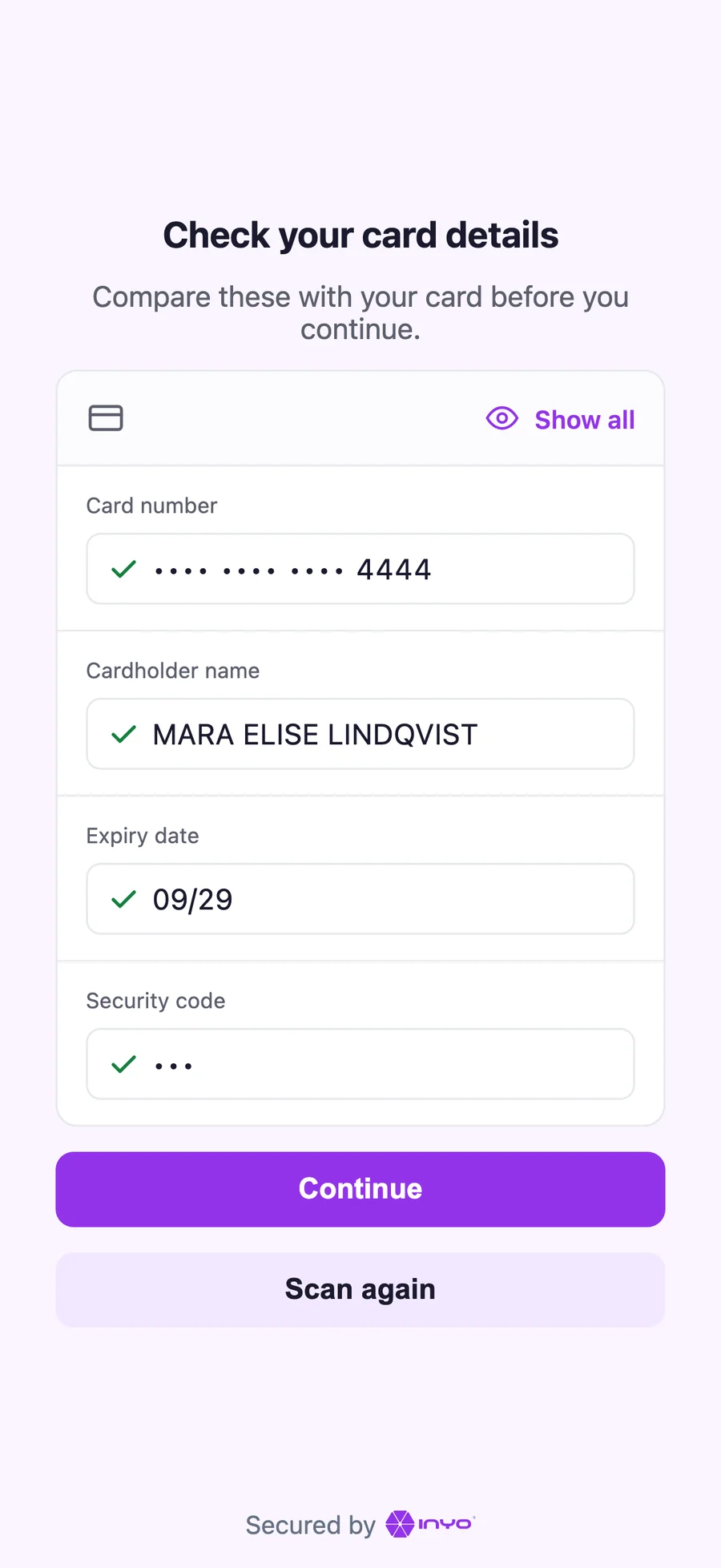


How It Works
The card step runs inside the hosted identity widget, after the document and selfie steps. It is part of the same session, and its outcome arrives in the same result and the same webhook. The diagram shows verification with tokenizing; in verification-only mode there are no tokenize steps (5 to 7), the webhook carries the card checks only, and there is no token to charge (9 and 10).
sequenceDiagram
    autonumber
    participant Y as Your System
    participant I as Inyo360
    participant C as Customer
    participant G as Payments Gateway
    Y->>I: POST /v1/sessions<br/>paymentCard.tokenize
    I-->>Y: widgetUrl
    Y->>C: deliver widgetUrl
    C->>I: document, selfie,<br/>card front / back
    Note over C: confirm card details
    C->>G: tokenize card
    G-->>C: token
    C->>I: token
    Note over I: Run card<br/>checks
    I-->>Y: signed webhook:<br/>checks + paymentCard
    Y->>G: POST /v2/payment<br/>cardTokenId: token
    G-->>Y: AUTHORIZED, CHALLENGE<br/>or DECLINED
Read payment_card_token_match before you charge: it confirms the token is for the card the customer photographed. The token goes in sender.paymentMethod.cardTokenId when you authorize a card payment, and a CHALLENGE follows the gateway's 3D Secure flow.
Two Ways to Integrate
Choose one per session: you add one object to the session request, and both modes run in the same widget and arrive in the same result.
| Mode | How it works | Choose this when |
|---|---|---|
| Verification | Send "paymentCard": {"capture": true}. The customer photographs the card, front and back. You receive the card rows in checks: the card is in view, readable and genuine, and its name matches the identity document. | You want to know the card is real and goes with the person, and you collect payment details your own way. |
| Verification and tokenization | Send "paymentCard": {"capture": true, "tokenize": {}}. The customer also confirms the details read from the card, and the Payments Gateway tokenizes it. You receive the same rows, one that checks the token against the photographed card, and a paymentCard block carrying the token. | You charge through the Payments Gateway and want a token without building a card form. |
Start with Getting Started.
Next Steps
| Page | What it covers |
|---|---|
| Getting Started | The two modes, and the path from session to token |
| Card Sessions | The paymentCard object on POST /v1/sessions |
| Widget Flow | What the customer sees, and the sequence behind it |
| Results | The paymentCard block in the result |
| Checks | The card rows in checks |
| Data Handling | What reaches Inyo360, what is kept, and what you never receive |
| Sandbox & Test Data | Testing with a printable specimen card |